
Your shortcuts in any program on Windows
Type /sig in Word, Outlook, WhatsApp, Teams, Excel or almost any Windows program and your full text appears. With fields to fill in, a // search and screenshots with an editor.
 Free · Windows 10 and 11
Working in the browser? Get the extension
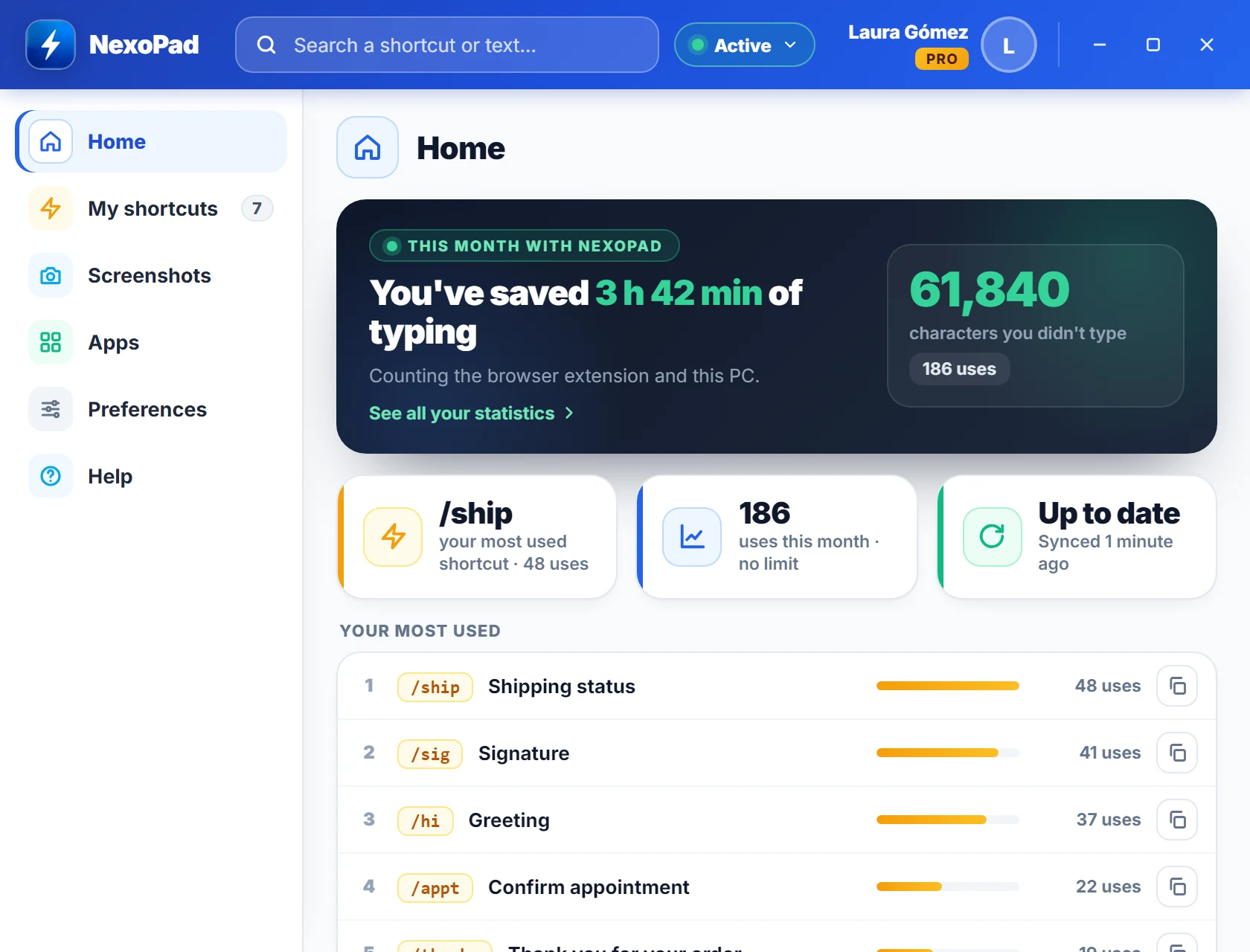
Get started in 1 minute
Install it from the Microsoft Store
Free, no administrator rights needed.
Sign in with your NexoPad account
Your shortcuts arrive on their own: the same ones you use in the browser.
Type your shortcuts in any program
Word, Outlook, WhatsApp, Teams, Excel…
Don’t have an account yet? Create one for free
Type /sig and your text appears
Type a shortcut in whatever program you are using and NexoPad replaces it with the full text: signatures, replies, addresses or details you repeat every day.
In Word, Outlook, Teams and Telegram, bold and formatting are kept. In plain-text programs such as Notepad, the text is inserted without formatting.
Templates you complete in seconds
If a shortcut has fields, a small window opens: type the name, pick an option or a date, see how it will look and press Enter.
- Text fields, option lists and dates
- Preview of the text before inserting it
- Remembers what you last typed in each field
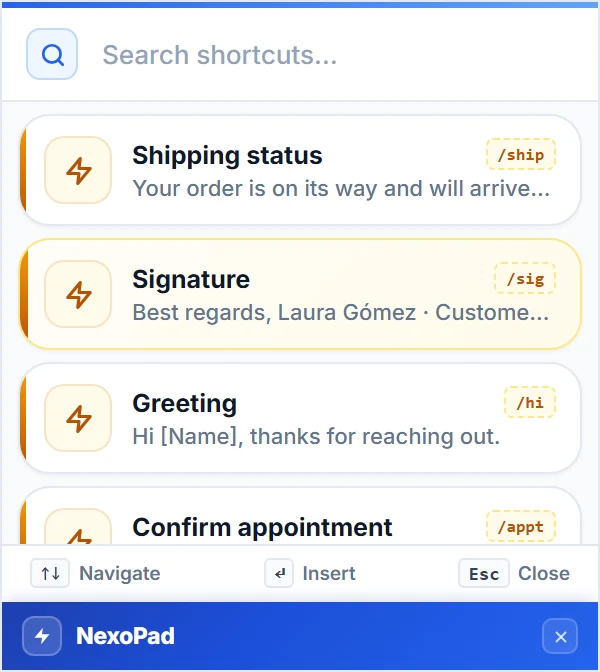
Can’t remember the shortcut? Type //
A search box appears with all your shortcuts, most used first. Type a few letters, pick one with the arrow keys and press Enter.
- Search by shortcut, title or text
- You can turn it off in Preferences
Capture, mark up and share
Press Alt+2 in any program, select an area and explain anything with arrows, boxes and numbers. Then copy it, save it or pin it on top of your windows.
- Arrows, shapes, pen, text, numbers and stamps
- Pixelate, blur or cover personal data
- “Copy text”: reads the text in the image, offline
- You can change the Alt+2 key to any key you like
Screenshots are saved only on your PC and never uploaded.
The same shortcuts in your browser and on your PC
You create and edit your shortcuts in the web dashboard or in the extension. NexoPad for Windows receives them automatically and types them in your programs.
Browser extension
Gmail, WhatsApp Web, your CRM and any website. For Chrome, Edge, Firefox, Opera and Brave.
Add to ChromeNexoPad for Windows
Word, Outlook, Excel, Teams, WhatsApp and every other program on your PC. The New and Edit buttons open the extension’s Notebook or the web dashboard.
Web dashboard
Create, edit and organize your shortcuts from any computer, and see how much time they save you.
Open the dashboardWhat you type is never stored or sent
NexoPad for Windows needs to watch the keyboard to recognize your shortcuts. This is exactly what it does.
Only the last few characters, in memory
It remembers at most the last 60 characters you type, only in your PC’s memory. They are cleared when you switch windows and are never stored or sent.
It stays out where it shouldn’t be
It does nothing in password managers, terminals, remote desktop or browsers (the extension works there). And you can turn it off in any program you want.
Your copy, encrypted on your PC
The local copy of your shortcuts and account is encrypted with Windows data protection. Screenshots never leave your PC.
No AI, no ads, no tracking
The Windows app has no AI features, shows no ads and uses no analytics or tracking.
Requirements
- Windows 10 (version 1809 or later) or Windows 11
- A NexoPad account: the free plan works too
- In English, Spanish, Portuguese, French and German
- Not available for Mac: use the browser extension there
Step-by-step guides
Frequently asked questions
Is NexoPad for Windows free?
Yes. The app is free on the Microsoft Store and works with your NexoPad account, including the free plan. If you want more, see the plans.
Do I need the browser extension?
No, your NexoPad account is enough. You can create and edit your shortcuts in the web dashboard. If you also have the extension, the app’s New and Edit buttons open its Notebook.
Does it work inside the browser?
No. In Chrome, Edge, Firefox and other browsers, the NexoPad extension does the work. The Windows app takes care of the programs on your PC, so together they cover everything.
Is there a Mac version?
No. On a Mac you can use NexoPad in the browser with the extension.
What does NexoPad read from my keyboard?
Only the last few characters you type (60 at most), to know when you type a shortcut. They stay in your PC’s memory, are cleared when you switch windows and are never stored or sent. In password managers and terminals it pays no attention at all.
Where are my screenshots saved?
On your PC, in the folder you choose (Pictures\NexoPad by default). They are never uploaded. If you like, they can be deleted automatically after 7 or 30 days; favorites are never deleted.
Does it work with the Teams plan?
Yes. You see your team’s shortcuts next to yours and they are inserted the same way in any program. Team shortcuts are managed by the team in the web dashboard.
How do I uninstall it?
Like any Microsoft Store app: in Settings › Apps, or right-click NexoPad in the Start menu › Uninstall. More details in the getting started guide.
Take your shortcuts everywhere on your PC
Free on the Microsoft Store for Windows 10 and 11.
On a Mac, or working mostly in the browser? Add the extension to Chrome